Immich
- Enable automatic Backup on the Smartphone App
- Log in
- Understanding the "Sync Albums" Option in Immich
Enable automatic Backup on the Smartphone App
Immich supports uploading photos and videos from your mobile device to the server automatically.
You can follow the official guide from Immich's Documentation here: https://immich.app/docs/features/automatic-backup
Log in
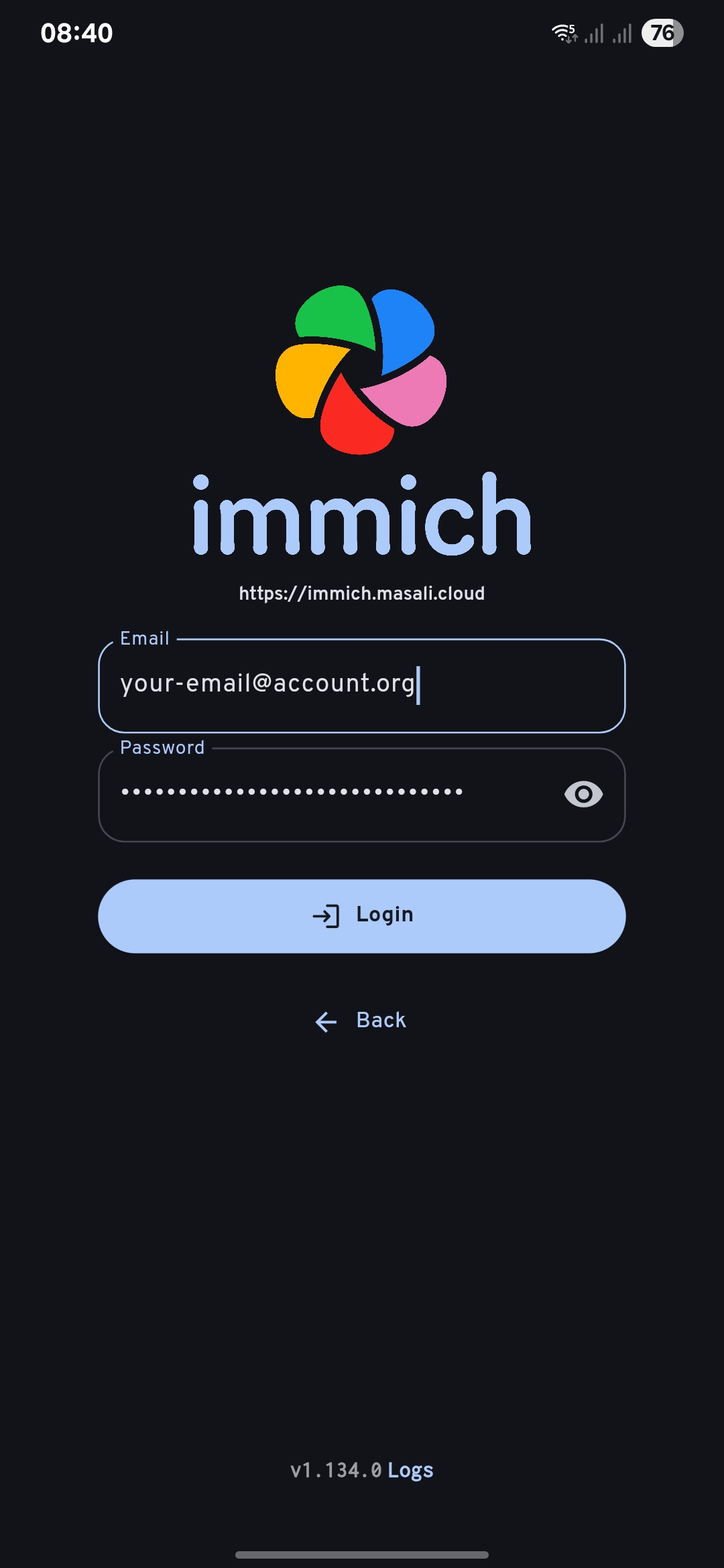
Trough the App
Example on how to log into the App:

Trough a Brower
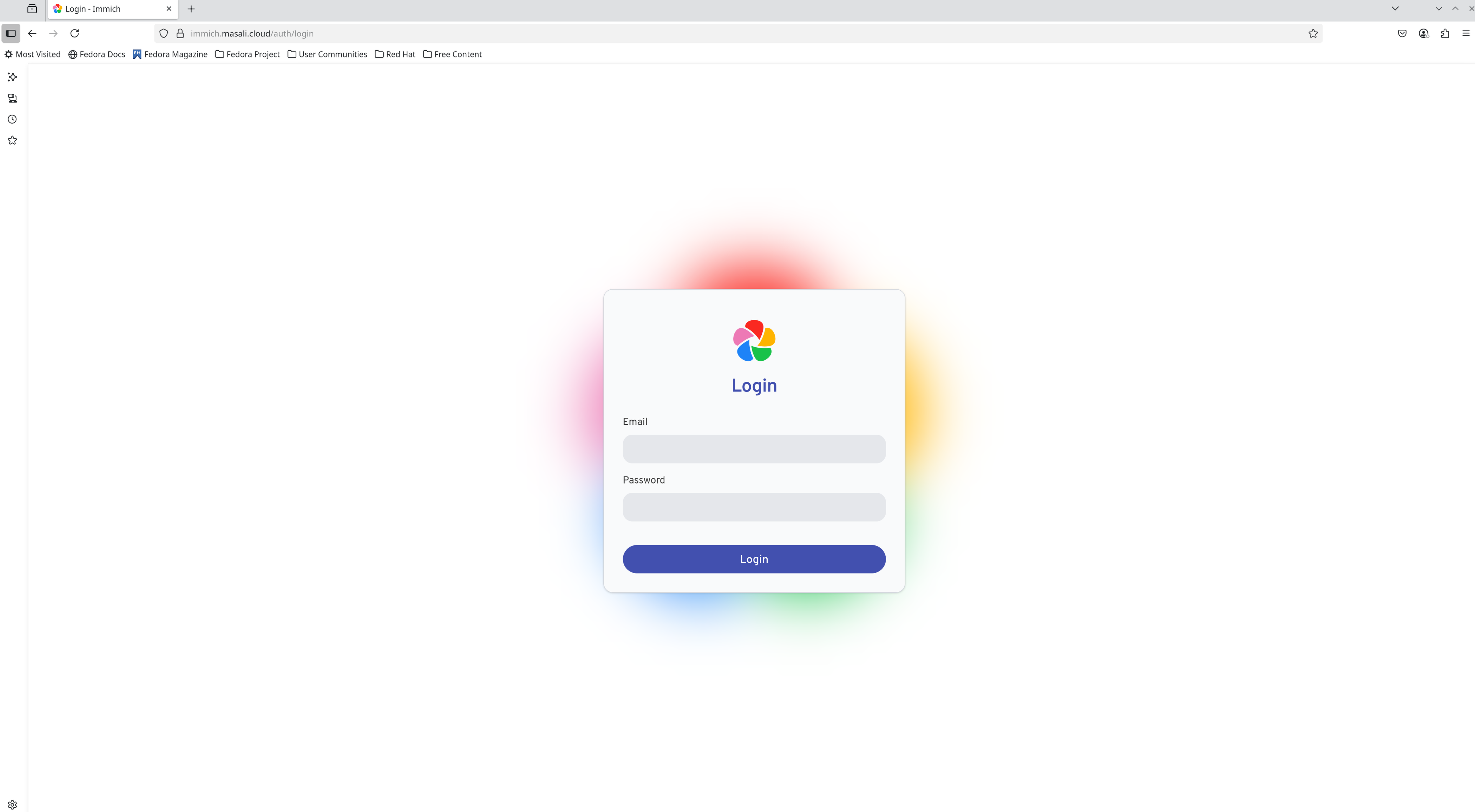
Go to the server URL: https://immich.masali.cloud and log in with your credentials.
Understanding the "Sync Albums" Option in Immich
From the official Immich Docs:
"You can sync or mirror an album from your phone to the Immich server on your account. For example, if you select Recents, Camera and Videos album for backup, the corresponding album with the same name will be created on the server. Once the assets from those albums are uploaded, they will be put into the target albums automatically."
Key Points:
- One-way Sync: Synchronization is one-way, from the device to the server.
- Album Merging: If an album on the server has the same name as the album on the device, images from the device will be merged with the existing images in the server album.
If you enable the "Sync albums" option, changes made on the server (e.g., deleting a photo) may be reflected not only in the Immich app but also in your device’s default photo app (such as Samsung Gallery or Apple Photos).
⚠️ Important Note:
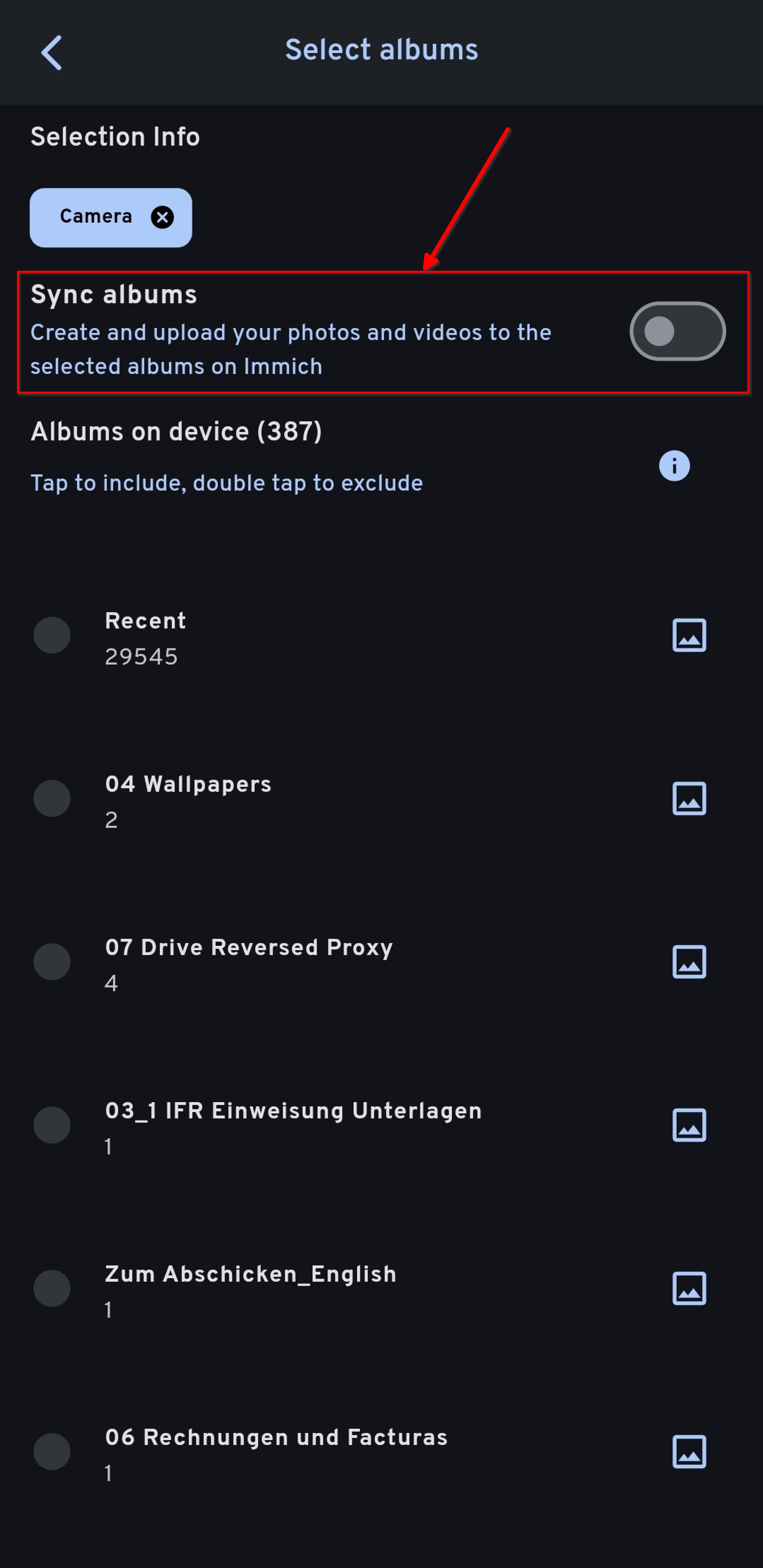
To avoid unintended changes on your local device, I recommend disabling the "Sync albums" option. This ensures that Immich only performs one-way backups and doesn't affect your local media library.
How to Enable/Disable:
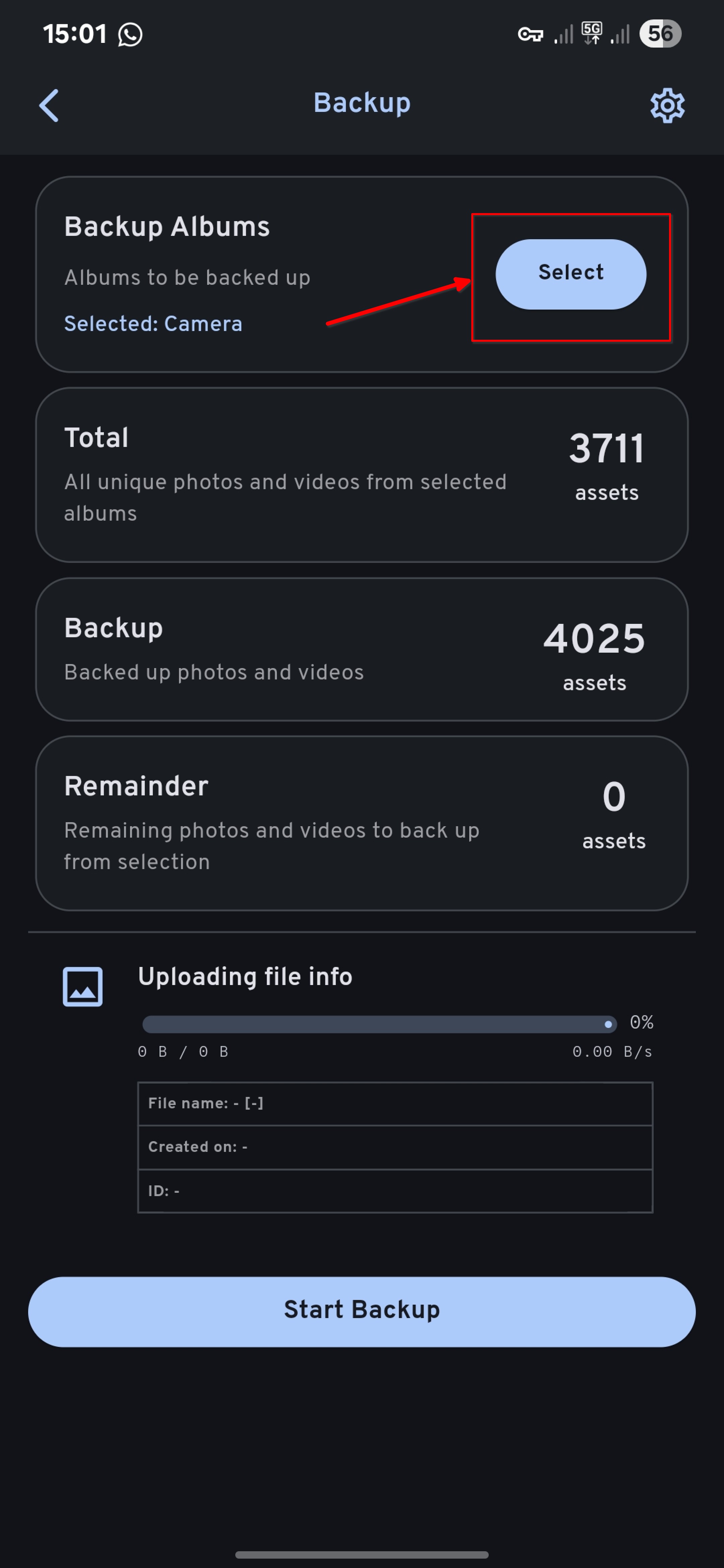
You can toggle the "Sync albums" option in the Backup Settings section of the Immich mobile app.
You can find the settings like so:
Check the following configuration: