Add Calendar and Contacts as cardDAV and calDAV to iOS and macOS
Calendar and contacts are added to macOS and iOS in the same way:
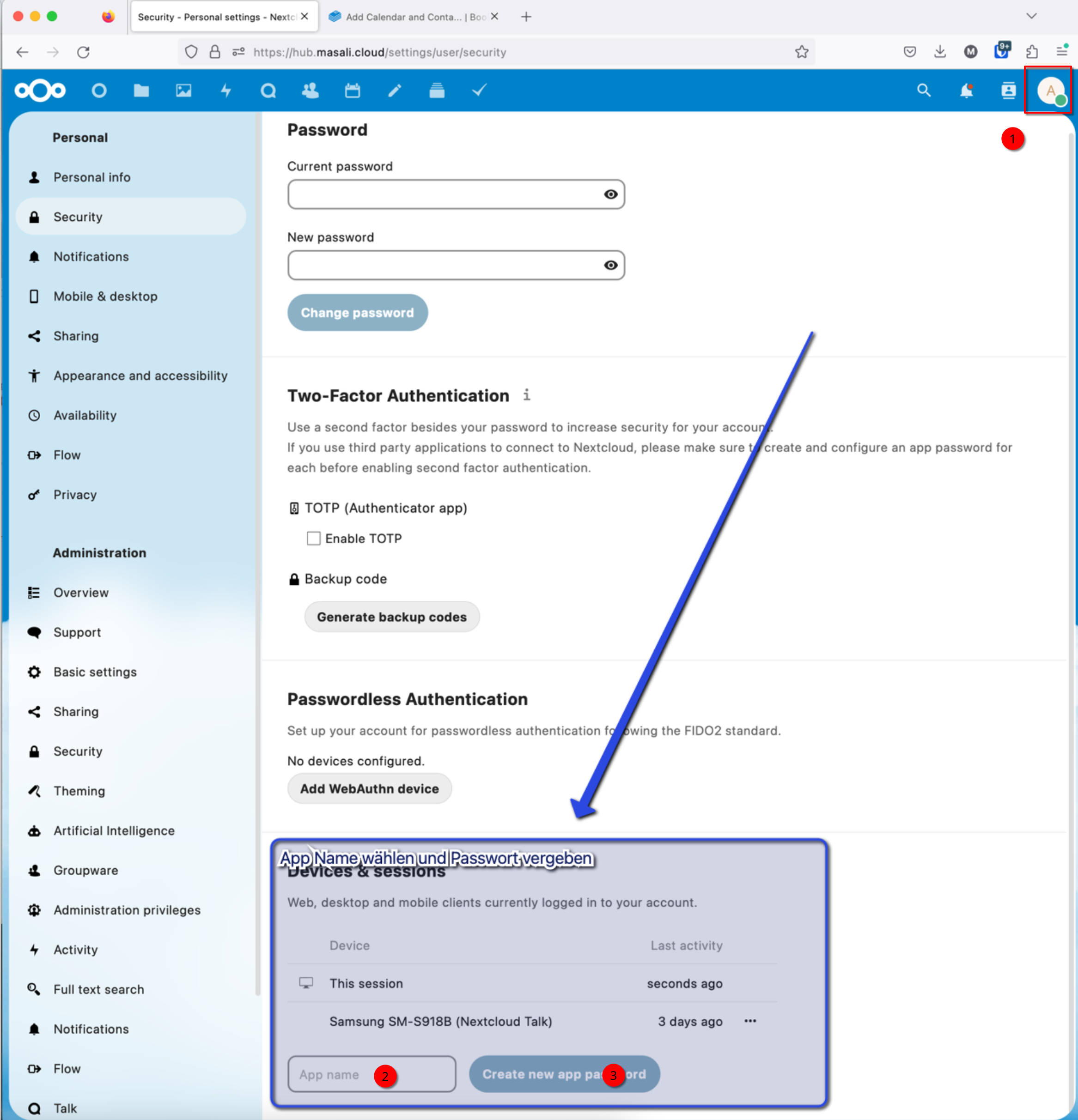
First assign an app password in the NextCloud settings. To do this, go to your own NextCloud account -> Settings -> Security and create an app password. The name you give it is not important, it can be chosen randomly (see below). The App password is only shown once! You can create as many App Passwords as you want! They do not change, even if you change your (main) Nextcloud Account Password!
Add Calendar Sync
In the next step, add the calendar to your iPhone / Mac:
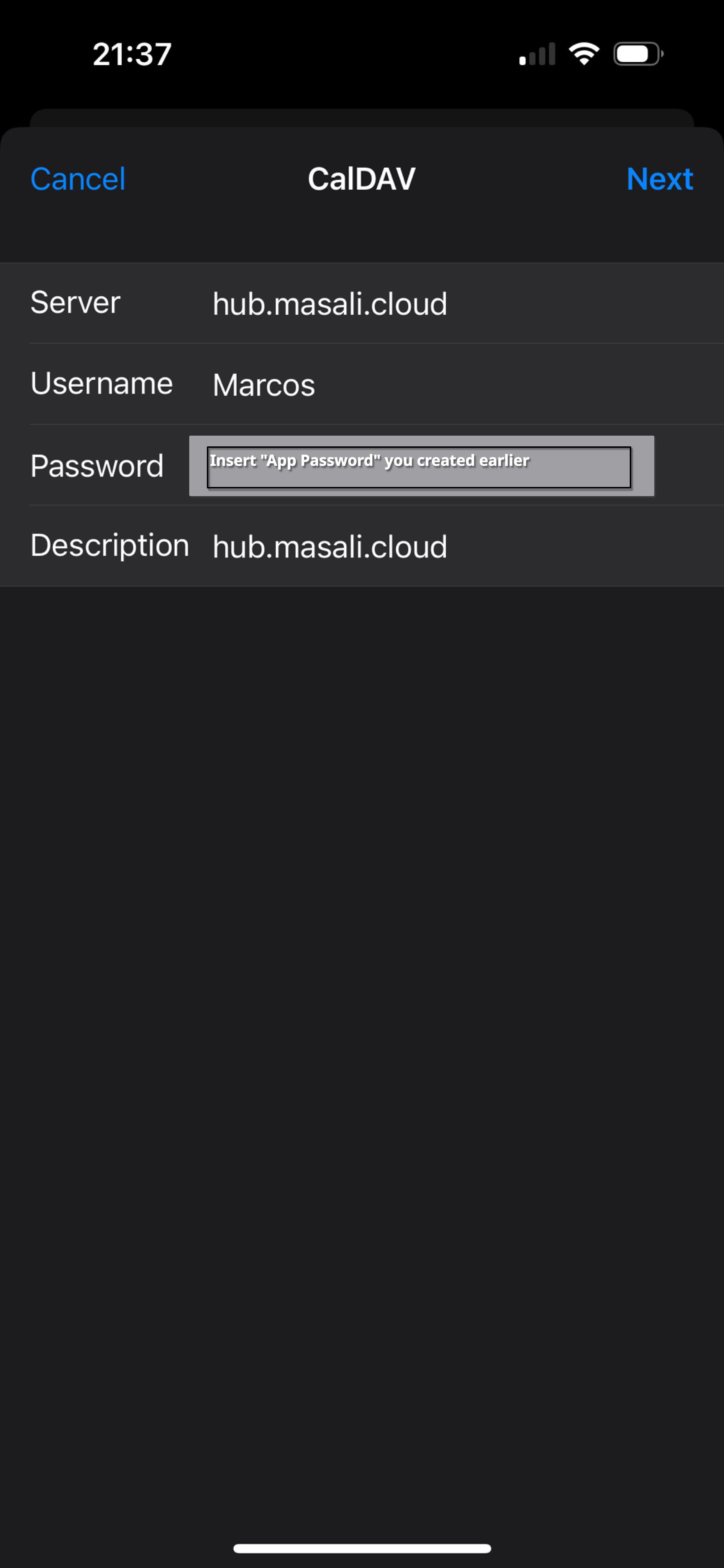
Go to Settings -> Calendar -> Accounts -> Add Account -> “Other” -> “Add CalDAV Account”... and fill in the fields as shown below.
Add Contact Sync
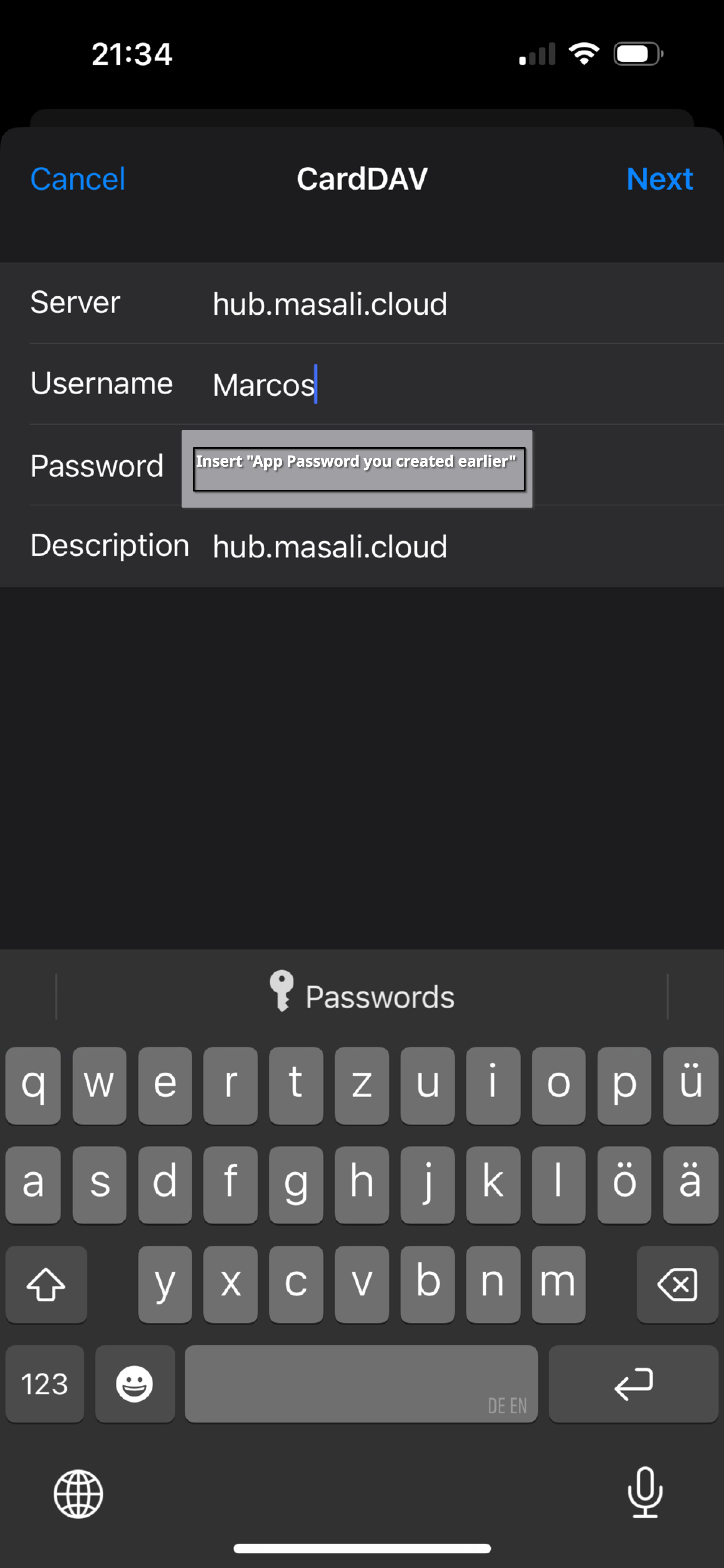
To add contact synchronization, go to: Settings -> Calendar -> Accounts -> Add Account -> “Other” -> “Add CardDav Account”... and fill in the fields as shown below.